 Utkarsh Karale
 Access Your PC via SSH Tunnel on Android Using Termux
How to securely access your PC's terminal from your Android device using Termux and a Cloudflare Tunnel.
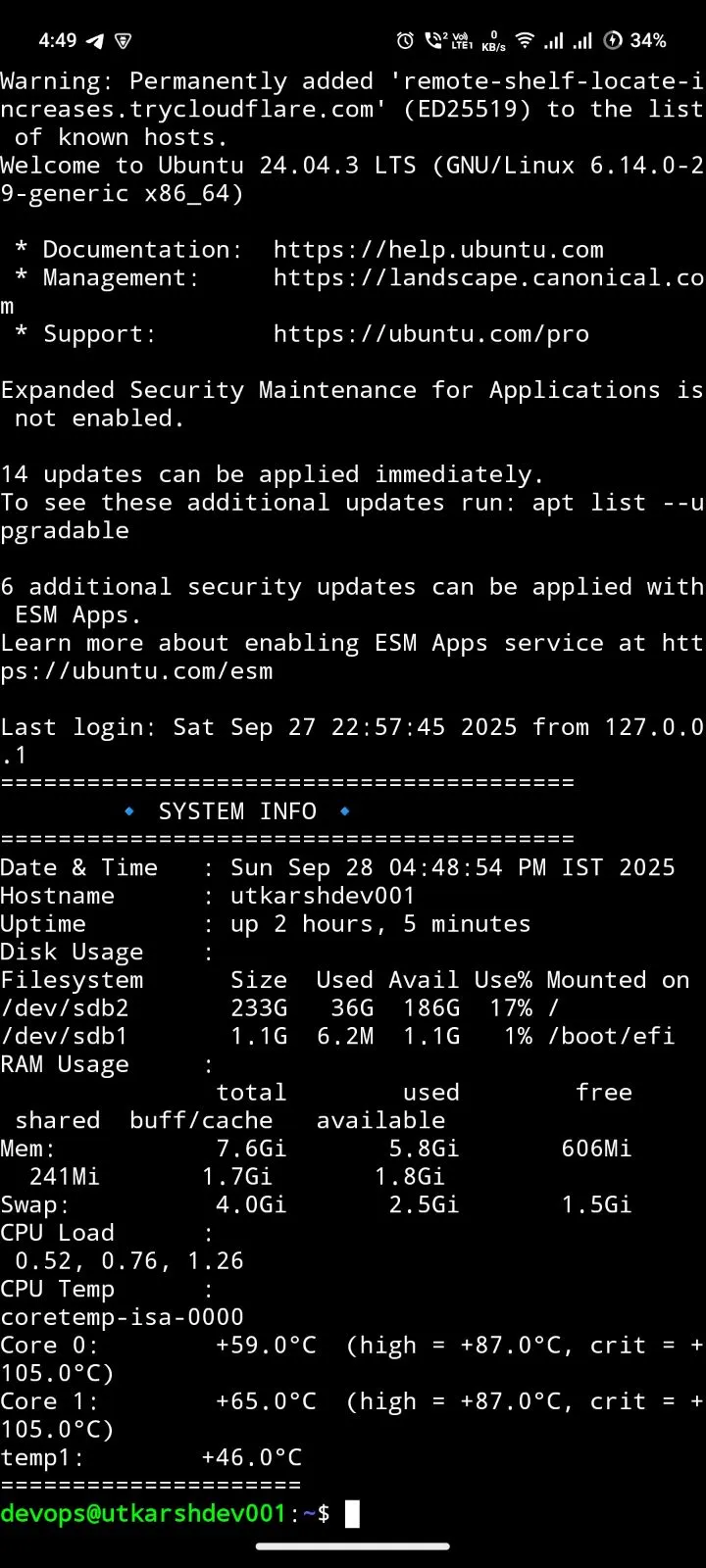
Working remotely is easier than ever! In this guide, I’ll show how to use your mobile device to access your PC terminal securely using the same SSH tunnel we set up earlier and Termux on Android.
Step 1: Install Termux
Download Termux from F-Droid or the Google Play Store.
Open the app and update your packages:
pkg update && pkg upgradeStep 2: Install OpenSSH in Termux
pkg install opensshStep 3: Add Your SSH Key
Transfer your SSH private key to Termux or generate a new one directly on your device:
ssh-keygen -t rsa -b 4096 -C "your_email@example.com"Note: Make sure to add your public key to your PC’s authorized_keys file if you haven’t already done so.
Step 4: Connect to Your PC via Cloudflare Tunnel
Use the exact same Cloudflare Tunnel URL we set up in the previous guide:
ssh username@<cloudflare-tunnel-address>Now you can run terminal commands on your PC directly from your mobile device!
Why This Is Useful
- Full remote terminal access straight from your phone.
- Manage servers, run scripts, or check logs effortlessly while on the go.
- Works securely even if your host machine doesn’t have a static IP address.